
When marking a student as a leaver, they will no longer be shown in student lists (if you don't explicitly choose to view them).
Their assessment results/reading will no longer be shown in the aggregated statistics of that academic year, but will be included in previous years for reporting purposes.
Note: If the student moved to another class/school within the organisation that also has access to Lexplore, please use the move function instead to not loose any data, or ask the receiving teacher to add the student and they will be moved automatically.
Note: If your school or Academy Trust has an active integration between the Student Information System (SIS) and Lexplore the manual function of deleting student is limited. The main administration of student is then handled in the SIS and then automatically updated in Lexplore.
How to mark a student as a leaver (delete/remove student)
- Log into the Lexplore Portal. portal.lexplore.com
- Drill down to the class.
- Find and select the pupil you wish to mark as a leaver. A cog wheel will appear in the upper right corner. Click on the cog wheel.

- By clicking the cog you will be directed to the Admin page and student settings.
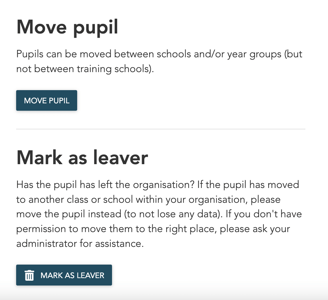
- Scroll down to the bottom to find the option to "Mark as leaver".
- When clicking "MARK AS LEAVER" you get prompted to confirm the action.
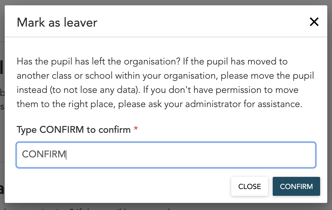
- Type "CONFIRM" in the field provided and then click "CONFIRM".
The student will now be marked as a leaver. Note: Leavers get anonymised after a number of days set by your organisation.
How to find leavers in the class list
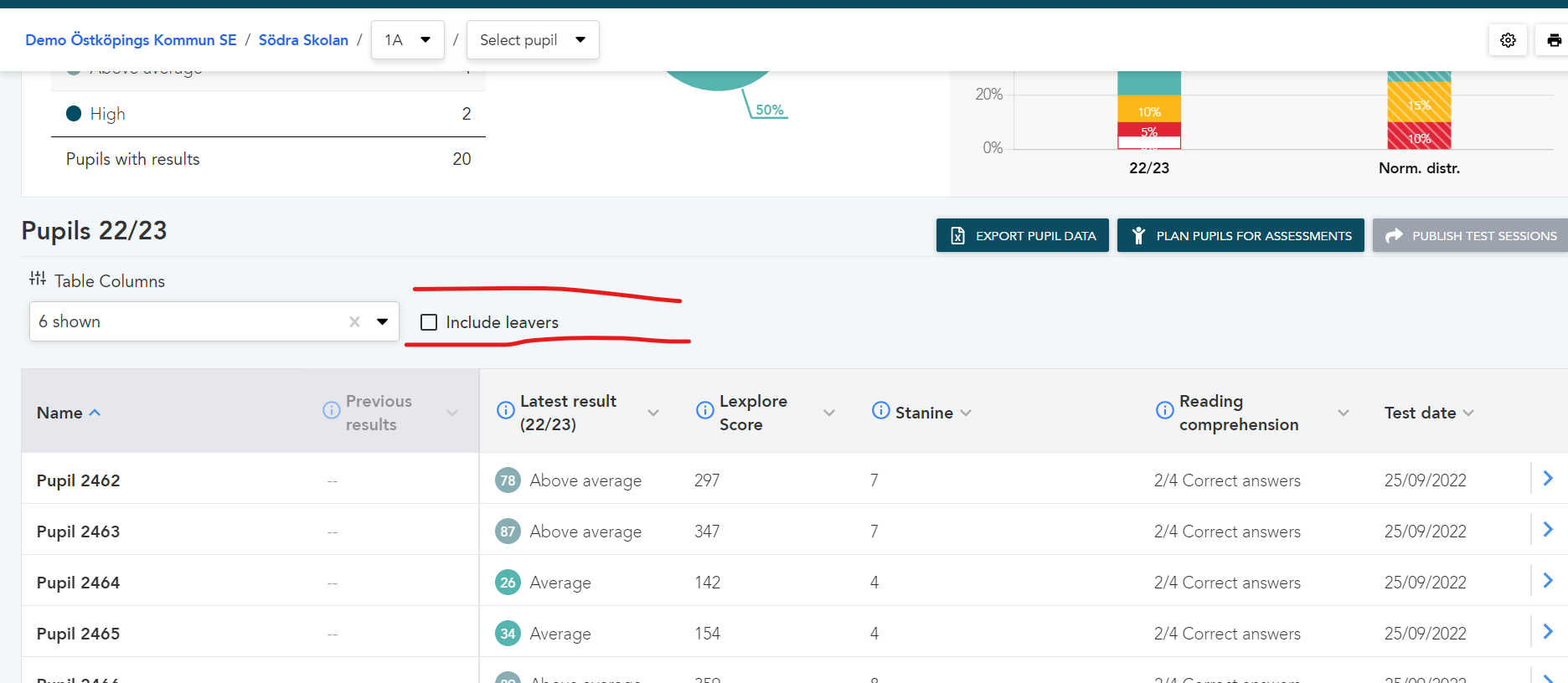
When marking a student as a leaver, they will not be shown in the list of students, but if you would like to view them (for example for handover purposes), you can do so this way:
- Log in to the Lexplore portal: portal.lexplore.com
- Go to the student's old class.
- Click the box beside the text: Include leavers.
How to unmark a pupil as a leaver
If you marked a pupil as a leaver by mistake, or if the pupil returned to the class/school you might want to "revive" the pupil and unmark it as a leaver. You can do so by:
- Log in to the Lexplore portal: portal.lexplore.com
- Go to the student's old class.
- A cog wheel will appear in the upper right corner of the portal
 . Press the cog wheel.
 - Below the list of students that are active in the class, you can expand the list of leavers.

- Press the + on the student that you would like to unmark as a leaver
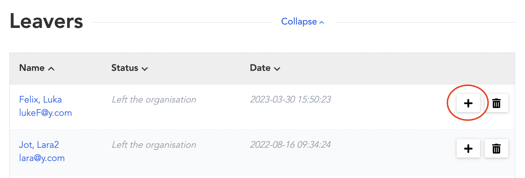
- You get prompted to confirm the action. Press CONFIRM.
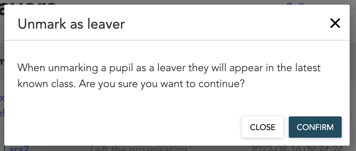
The student is now brought back as an active student in their latest known class. If that isn't their current class, please move the student to where it belongs.
🛎️Here at Lexplore, we love to help our users with their questions and provide self-help guides for quicker service. Please vote below on the Question of whether or not this article was helpful. 😊