
My Reading as the starting point
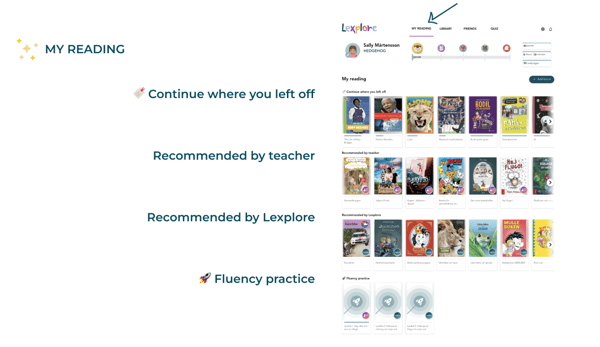
When students open the Reading App, they land on My Reading. From here they can follow their progress and reach all their personalised content, including books in progress, teacher recommendations, level-based suggestions and assigned fluency practice. This makes it easy to pick up where they left off.
Customisable avatars
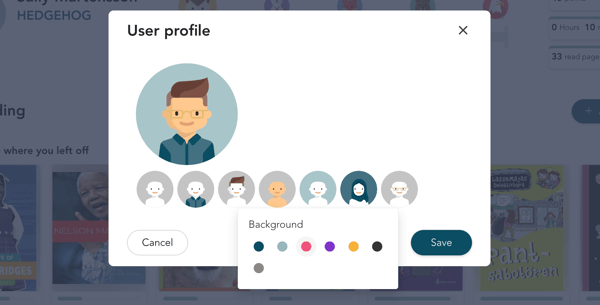
Students can design their own avatar with more than 14 million possible combinations. The options include:
- 77 shirts, 112 hairstyles, 5 skin tones and 7 backgrounds
- 8 hijab options (or none) and 6 glasses options (or none)
- A choice between younger and older face styles
- Avatars can be updated anytime by clicking the ✏️ pen icon in the profile
Progress and reading levels
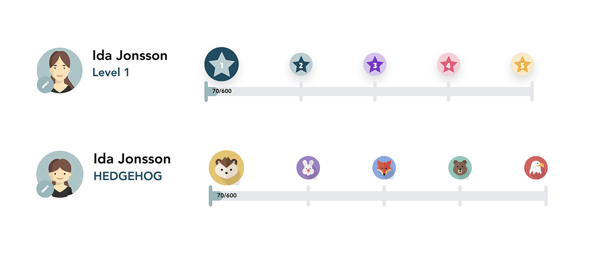
Reading levels are shown with animal icons. Students who choose an older face style for their avatar see star icons instead, which gives a more mature look and feel.
The level display shows how far the student has come and how much is left to reach the next level, which makes progress easy to follow and motivating.
Preferences menu
-
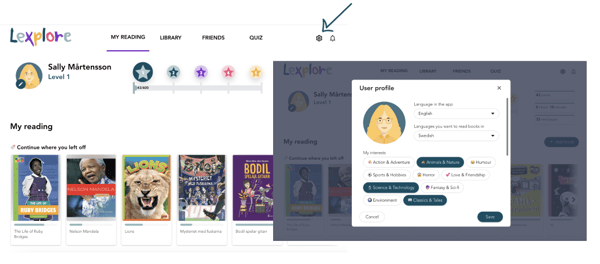
The preferences menu in the top-right corner gives students access to:
- Language settings
- Reading interest selections
🛎️Here at Lexplore, we love to help our users with their questions and provide self-help guides for quicker service. Please respond below in the Questions whether or not this article was helpful. 😊