
Under Reading in the Lexplore Portal, you as a teacher can see which books the class and each student are reading, how much they read and when they last read. The data helps you follow reading habits, encourage the right students and identify students who need support getting started or finishing a book.
How to find Reading
- Log in to the Lexplore Portal.
- Select the class you want to look at.
- Click Reading in the class menu.
You will now see an overview of the class's reading. From here you can go on to each individual student.
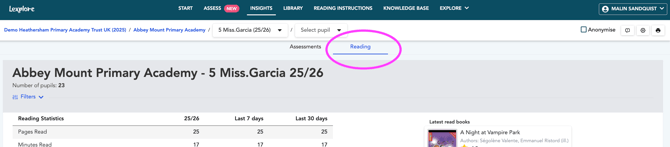
Class level: overview of the class's reading
At class level you see five measures that show the class's reading as a whole. Together they show both how much and how regularly the class reads.
| Measure | What it shows | What you can use it for |
| Pages read | Number of pages the class has read in total | Follow how much the class reads over time |
| Minutes of reading | How long the class has read in total | Compare time with pages: many minutes but few pages may indicate that reading is slow |
| Reading points | Points the class has collected in total through its reading | Follow engagement and motivate, e.g. with class goals |
| Finished books | Number of books the class has finished in total | See how many books the class completes |
| Last read | Date someone in the class last read | See whether the class reads regularly |
Tip: look at several measures at the same time. A single measure rarely tells the whole story about the class's reading. To see how individual students read, go on to student level.
Student level: see each student's reading activities
To see a student's reading in detail, go from the class to the student:
- Under Reading for the class, choose to view all students in the class in detail.
- Click the student you want to look at.
- Select Reading activities.
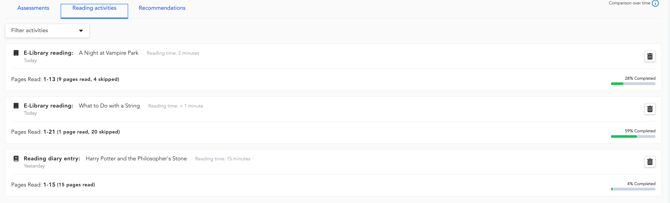
Under Reading activities you see all books the student has opened, and for each book:
- how far the student has read in the book
- how long the student has read in the book.
How to use the data – examples
Example 1: The student opens many books but doesn't finish any
Ella has opened seven books in the past month. Under Reading activities you see that she has read 5–15% of each book and then switched. Finished books is 0.
This may mean that the books are too difficult, that she can't find anything that interests her, or that she finds it hard to get into a text. Talk with Ella about what she likes and help her choose a book at the right level. Agree on a small goal, e.g. finishing a shorter book before she switches.
Example 2: Many minutes but few pages
Omar has read for 120 minutes but only 30 pages. Reading may be slow. This can be a sign that he needs easier texts or support with decoding. Feel free to compare with his results from Lexplore's screening.
Example 3: The student hasn't read in a long time
In the Last read column you see that Noah hasn't read for three weeks. Bring it up with him and help him get started with a new book.
Example 4: The class as a whole
Follow the class's pages read, minutes and finished books over time. Use reading points for a shared class goal, e.g. a certain number of finished books before the holidays.
Example 5: The student reads a lot and finishes books
Lova has five finished books and reads almost every day. Give her praise and suggest new books that challenge her a little more.
Tips
- Students can also log analogue reading of books in Lexplore.
- Check Reading regularly, e.g. once a week, so you catch patterns early.
- Use the data as a basis for conversations with the student, not as a grade on the student.
- Combine the reading data with the screening results for a fuller picture of the student's reading.
🛎️ Please vote below on whether this article helped you with your question on the topic. We at Lexplore want to make these guides as good as possible for you and really appreciate your feedback 😊