.png?width=670&height=58&name=Group%20737%20(1).png)
About the Course
You are about to engage in the fifth part of the training course, The Reading Journey – Practical work.
In this part, we will go through Managing the library, where you will get an overview of the teacher's page in the library.
Course content
Managing the library
- Introduction to the library
- Find your way to the Fluency practies
- Filter the Fluency training
- Read and recommend reading fluency training
- Filter, sort & recommend in the e-library
- Library and co-operative reading instruction


Introduction to the library
Now you’ll learn more about the possibilities available in our library.
In the library, you’ll find all the Fluency Practice books. This is also where you can choose to print the fluency books for offline reading.
The library also includes a section with fiction and factual (non-fiction) books. This part is an add-on service. If you don’t have access to the library, you will still see the books, but you won’t be able to read them.
If you’re interested in having your school or municipality/organisation purchase access to the library, feel free to contact us via our website 👉 www.lexplore.com
You will now learn how to:
- Find the fluency practice section
- Filter fluency practice
- Read and recommend fluency practice
- Filter, sort, and recommend books in the e-library (add-on)
Find your way to the Fluency practies
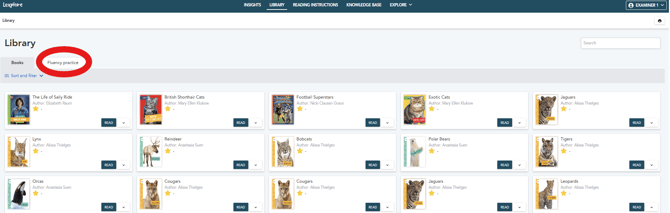
When you have selected the Library tab, you will arrive at this page.
Regardless of whether you have access to the e-library with regular books, you will still see the titles here.
To proceed to the fluency practice section, select the Fluency Practice tab (red).
Lexplore remembers which tab you last viewed, so the next time you visit this page, you’ll be taken directly to the fluency practice tab if that’s where you were last.
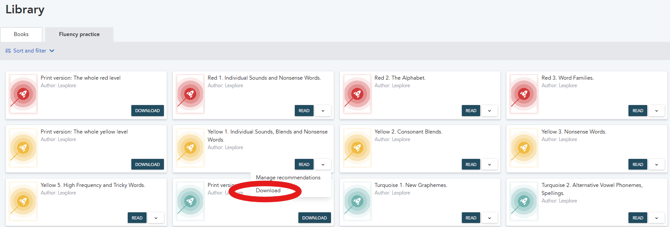
You will then see a page with all the fluency practice materials. At this stage, you can choose to read the book, download it, or recommend it (red below).
If you download a fluency book, you can print one book at a time.
If you want to print an entire level, you can choose to download the full level. Click Download on a Printable version (blue).
You can do this for all five levels. This can be useful if you want to print all levels or simply browse through the material.
Filter the Fluency training
If you only want to see a specific reading level, you can filter the page in the Fluency practice section (red).
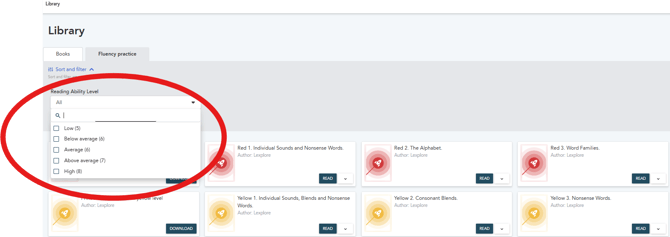
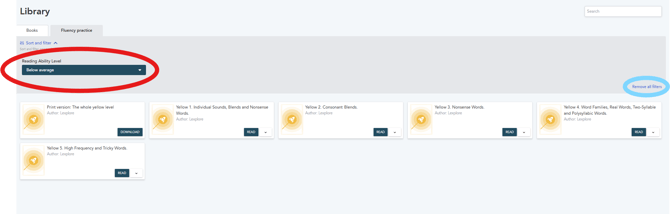
Once you’ve done that, it will look like this – see below!
You’ll see that all the fluency books and the printable version are available here as well, but only for the level you selected in the filter (red).
You can also remove all filters (blue).
Read and recommend reading fluency training
If you want to preview a book, simply click the Read box and the book will open on your screen.
You probably remember that you can click Recommend (red) to share a book with a class, a group of students, or an individual student.
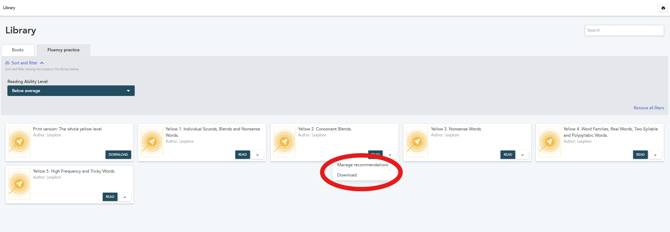
Recommend Fluency Practice
When you’ve selected Recommend, you’ll see the page below!
If you want to recommend fluency practice to an entire class, select the top box (red).
If you’d rather recommend it to a few students or an individual student, tick the boxes next to the relevant students (blue).
Don’t forget to save (yellow).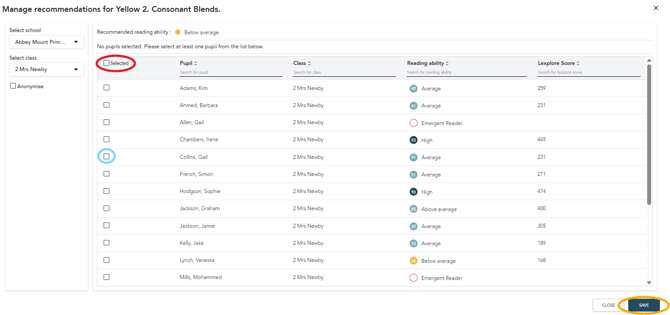
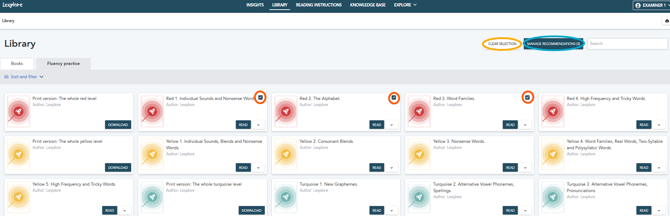
You can also tick the box next to one or more books simultaneously, and then share them in the same way described above (red).
Once you’ve selected the fluency books, click Recommend Books (blue). Then follow the same steps shown in the image above.
You can also deselect a specific book or all selected books by clicking Clear Selection (yellow).
Filter, sort & recommend in the e-library
This function is only available if you have access to the e-library with regular books.
Even if you don’t have access to the e-library, you will still see the titles but won’t be able to read them.
When you enter the e-library, all available books will automatically be displayed.
To make it easier, you can use filters.
You’ll find the filters by clicking Sort and Filter (red). All selected filters will remain the same the next time you enter the library.
Available filters:
- Genre
- Topic
- Age
- Easy-to-read
- Quiz
- Sound
- Readability index (LIX)
- Book series
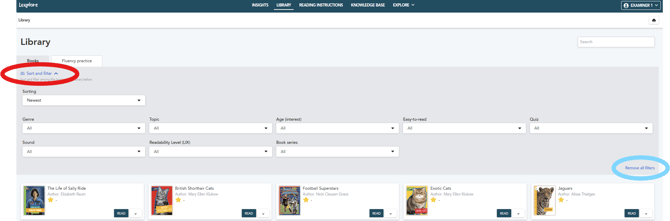
You can also sort by:
- Alphabetical order
- Newest
- Student rating
Books are automatically sorted by Newest. You need to actively select a different sorting option if you prefer another order.
.png?width=670&height=273&name=17592338-bdcd-4693-9e80-1ed96d19e3c3.optimized_high_q%20(1).png)
Recommending books works the same way as with fluency practice.
Recommend one book at a time
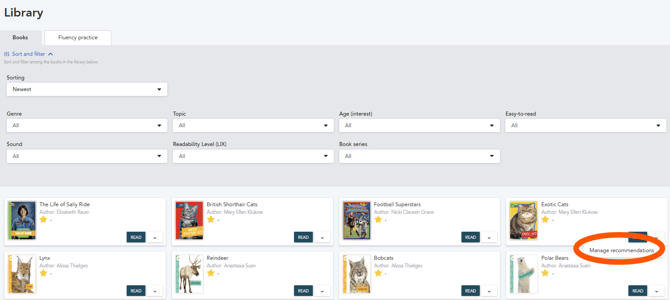
When you want to recommend a book, select it using the Recommend button located next to each book (red).
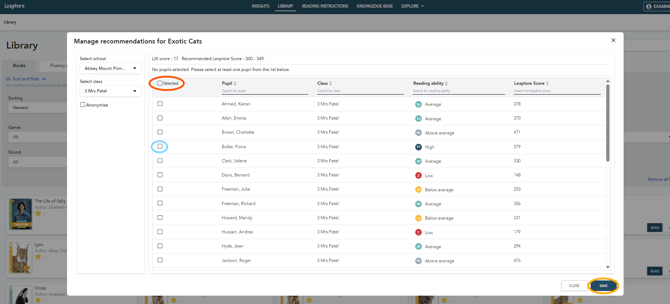
The next step is to recommend to an entire class (red), a group of students, or an individual student.
To select the whole class, tick the top box (red).
Then choose the student(s) by ticking the boxes next to their names (blue).
Don’t forget to save (yellow).
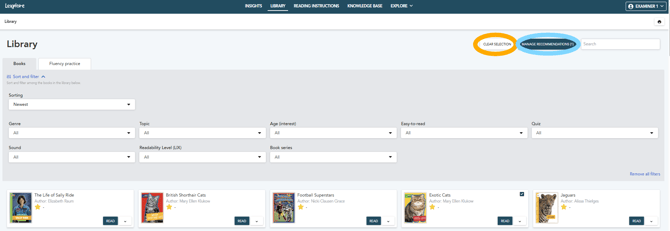
You can also tick the box next to one or more books simultaneously, and then share them in the same way described above (red).
Once you’ve selected the books, click Recommend Books (blue). Then follow the same steps as shown in the image above.
You can also deselect a specific book or all selected books by clicking Clear Selection (yellow).

Library and co-operative reading instruction
We have chosen to include a module on the Lexplore Library and co-operative reading instruction because our vision is for the Lexplore Library to act as a resource for you when you distribute fiction and non-fiction texts to students. Therefore, the exercises on the page are generic, so you can use the titles you want. Of course, feel free to use the Lexplore Library as a support to find the right level!
Watch the film describing this below👇🏼
Well done ⭐
Now that you’ve completed the course, Managing the library. We invite you to explore our other courses in the Academy.
Please press the button below to mark the course as completed